Reconciliation settings establish the attribution rules, lookback windows, and priority logic that Kochava uses to attribute installs and re-engagements across your media partners.
The Default Reconciliation Settings interface establishes app-level baseline settings. Any partner that does not have custom partner-level reconciliation rules configured will inherit these defaults.
Accessing Default Reconciliation Settings
- Log in to Kochava.
- Select the desired Account and App.
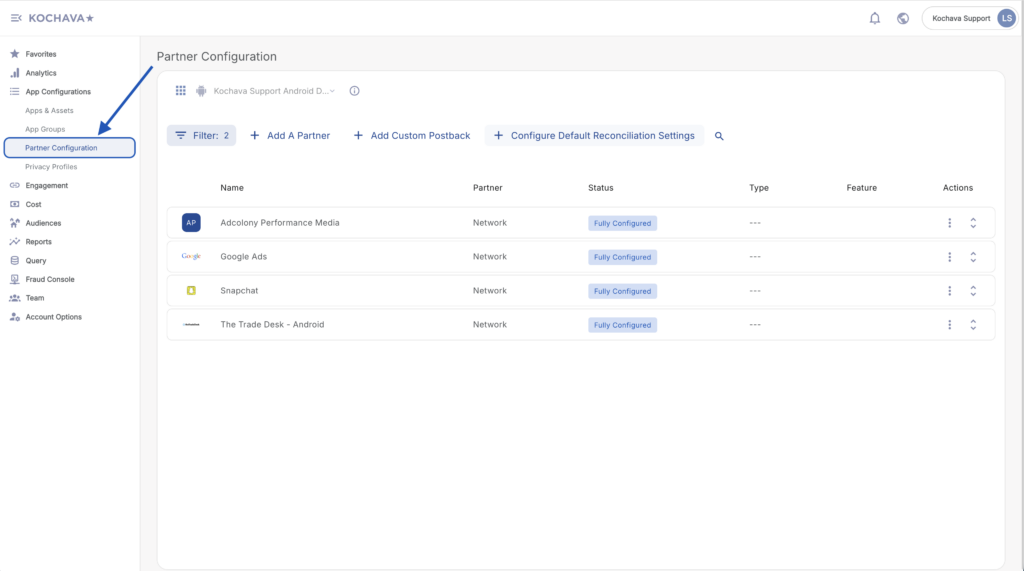
- Select App Configurations > Partner Configuration.
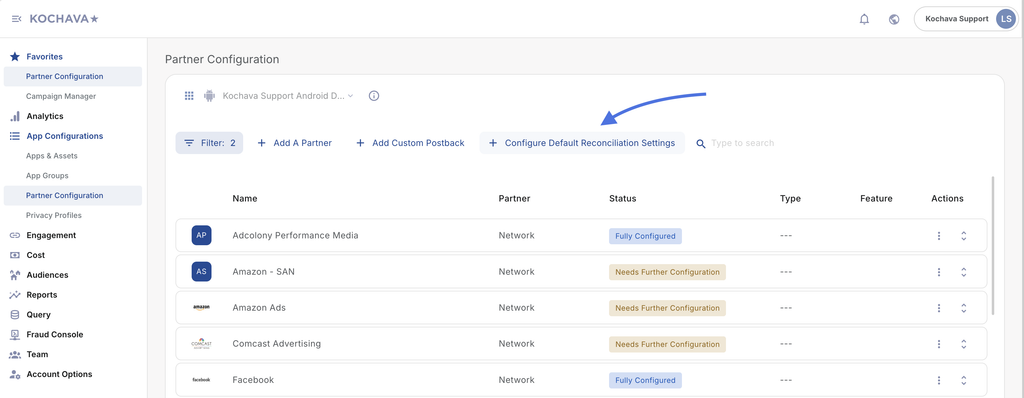
- Click Configure Default Reconciliation Settings. The configuration side drawer will open.
1. Install Reprocessing Lookback
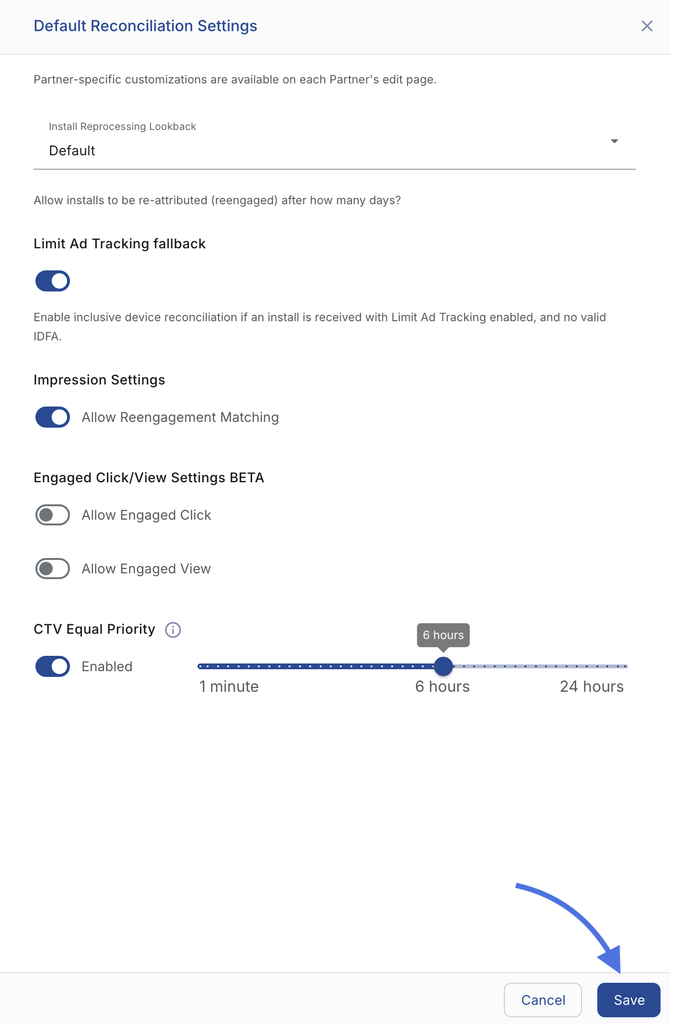
The Install Reprocessing Lookback setting controls how Kochava handles app reinstalls (when a user uninstalls and subsequently reinstalls your app).
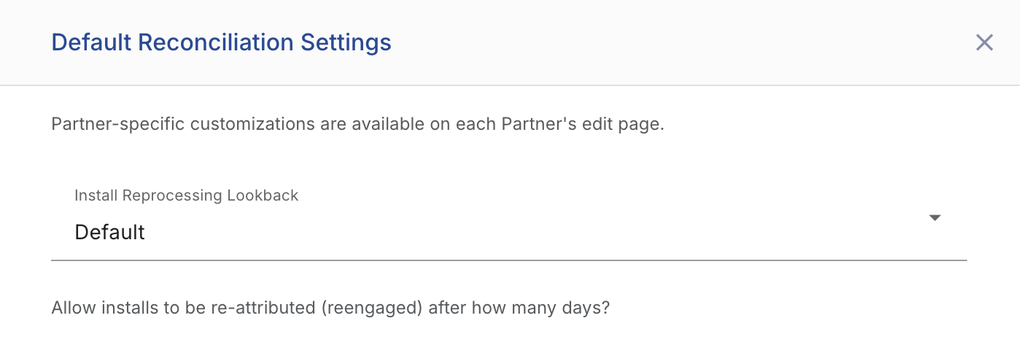
- Default: Maintains the user’s original attribution source. Subsequent install events recorded from that device will not be re-attributed to a new campaign or partner.
- 1 to 365 Days: Defines an inactivity threshold. If an install event is received after the designated lookback window has elapsed since the previous install, Kochava will treat the event as a new conversion and reprocess attribution to the most recent eligible touchpoint.
2. Limit Ad Tracking (LAT) Fallback
Platform Scope: iOS only.
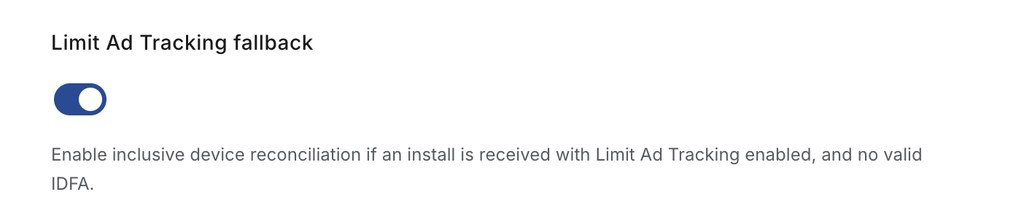
When a user enables Limit Ad Tracking (LAT) on older iOS versions prior to the ATT Framework, the device identifier (IDFA) is unavailable.
- Enabled: Kochava enables modeled reconciliation to match touchpoints using alternative signals when device identifiers are absent.
- Disabled: Standard attribution matching requiring explicit device identifiers remains strictly enforced.
3. Impression Settings
Impression settings govern how view-through engagements interact with user retention and conversion journeys.

- Allow Reengagement Matching:
- Enabled: Kochava evaluates impressions for re-engagement attribution when an active user interacts with an ad and later launches or performs an in-app event.
- Disabled (Default): View-through re-engagement is excluded from attribution; only clicks are considered for downstream re-engagement matching.
4. Engaged Click / Engaged View Settings (BETA)
For media partners that support engaged touchpoint formats (such as playable ads, rewarded video completions, or rich media interactions), these settings determine whether engaged signals qualify for attribution reconciliation.
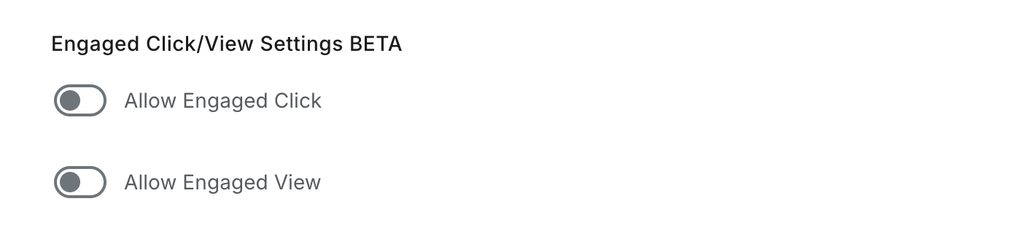
- Allow Engaged Click:
- Enabled: Allows high-intent engaged clicks (e.g., reaching a milestone in an interactive playable ad) to be considered in conversion reconciliation.
- Disabled: Standard click criteria apply; intermediate engagement events are ignored for reconciliation.
- Allow Engaged View:
- Enabled: Permits completed video views or dedicated view thresholds to compete within attribution lookback windows.
- Disabled: Engaged view signals are not factored into conversion reconciliation.
5. Connected TV (CTV) Equal Priority
In standard cross-device attribution, Kochava’s attribution waterfall gives higher priority to clicks over impressions regardless of recency, under the assumption that a click demonstrates higher user intent.
However, Connected TV (CTV) is primarily a “lean-back” or second-screen medium: viewers do not click their television screens, but rather view a CTV ad (impression) and convert on their mobile phone, tablet, or desktop shortly afterward. Under standard waterfall logic, an older mobile click could unfairly win attribution over a recent CTV ad view that directly drove the conversion.
The CTV Equal Priority setting resolves this by allowing CTV impressions to compete directly with clicks on recency (last touch).

Configuration Settings
- Enabled Toggle:
- ON (Default): Activates CTV Equal Priority. Eligible CTV impressions occurring within the lookback window will compete head-to-head with clicks based on which engagement occurred closest in time to the conversion.
- OFF : Standard waterfall logic applies. Any valid click within its respective lookback window will win attribution over a CTV impression, regardless of recency.
- Lookback Slider:
- Range: 1 minute to 24 hours.
- Default: 6 hours.
- Specifies the time window prior to conversion during which a CTV impression is eligible to compete equally with a click.
Example Attribution Scenarios
| Scenario | Touchpoint 1 | Touchpoint 2 | Conversion | Outcome with CTV Equal Priority Enabled (6-hour window) | Outcome with CTV Equal Priority Disabled |
|---|---|---|---|---|---|
| A | Mobile Web Click (1:00 PM) |
CTV Impression (Hulu) (3:00 PM) |
Install (3:30 PM) |
CTV Impression Wins The CTV ad occurred within the 6-hour window and is more recent than the mobile click. |
Mobile Web Click Wins Clicks always supersede impressions under default waterfall priority. |
| B | Mobile Web Click (7:00 PM, previous day) |
CTV Impression (Roku) (8:00 AM) |
Install (3:00 PM) |
Mobile Web Click Wins The CTV impression occurred 7 hours prior to install, exceeding the 6-hour equal-priority window. Kochava falls back to click priority. |
Mobile Web Click Wins Clicks outrank impressions. |
6. Saving Your Settings
- Verify that all lookback windows and toggles are configured to your desired specifications.
- Click Save at the bottom of the drawer.